Working a report
Change a report's status, send the resident a message, assign it, add a photo of the fix, and merge duplicates.
Open a report from the inbox to see everything about it. On the left are the details; on the right, the Update report form.
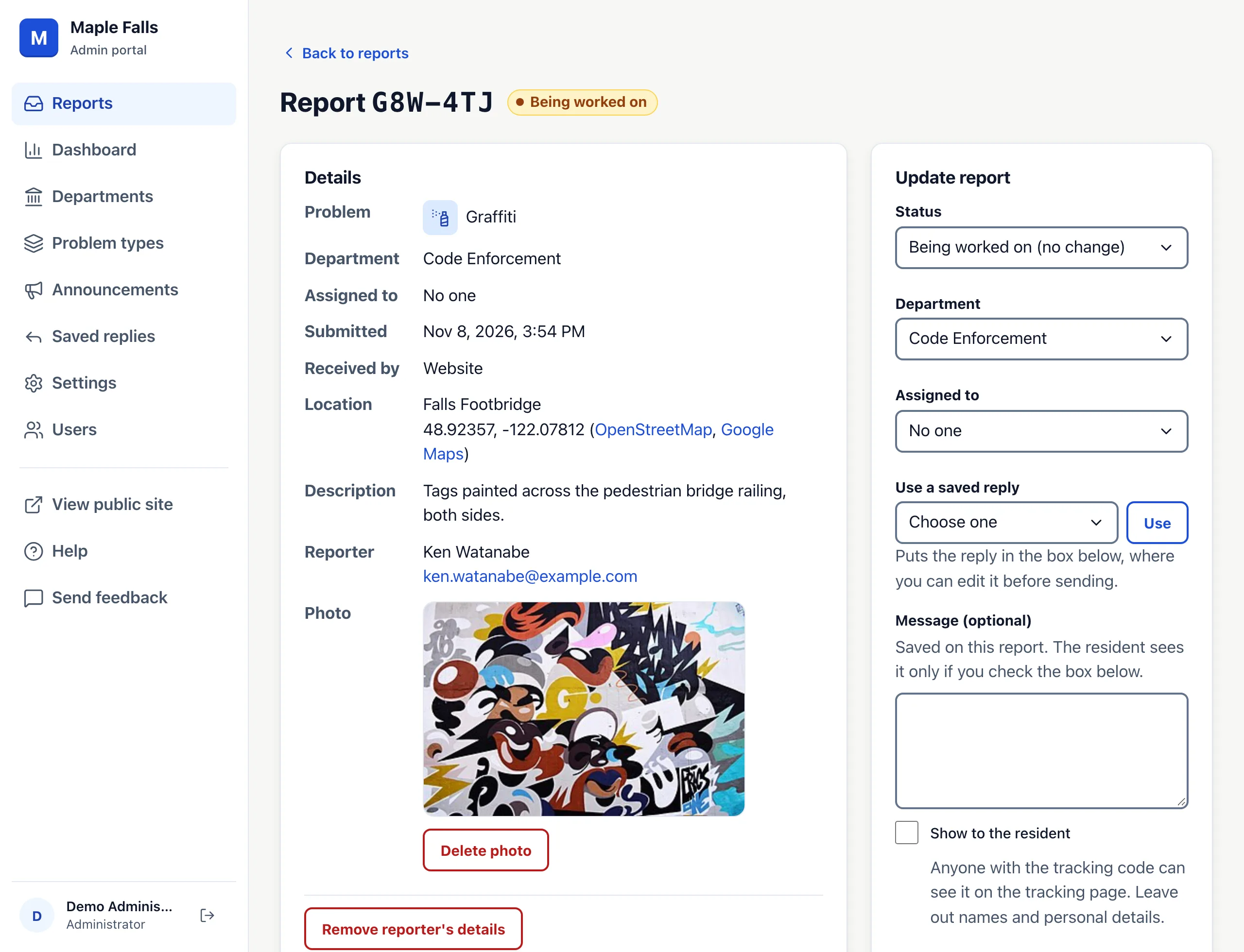
What the details show
The problem type, department, who it is assigned to, when it was sent, how it came in (website, phone call or in person), the location, the description, the resident's contact details and their photo. A location from the resident's phone links to OpenStreetMap and Google Maps. Only staff ever see the description, location, photo and contact details.
Statuses
Every report has one of five statuses. Residents see the same names on their tracking page, with a short explanation.
| Status | What the resident reads | Can change to |
|---|---|---|
| Received | We received your report. The city will look at it soon. | Seen by the city, Being worked on, Fixed, Closed |
| Seen by the city | The city has seen your report. | Being worked on, Fixed, Closed |
| Being worked on | The city is working on this. | Fixed, Closed |
| Fixed | The city has marked this as fixed. Thank you for reporting it. | Being worked on |
| Closed | The city has closed this report. | Being worked on |
A report can't go back to Received or Seen by the city. To reopen a fixed or closed report, change it to Being worked on.
For 30 days after you mark a report Fixed, its tracking page asks Is the problem fixed? If the resident answers yes, the timeline says so. If they answer no, the report goes back to Being worked on, the department and the person it's assigned to get an email, and the inbox tags it Reopened by resident until you change its status. What they wrote about it is for city staff only. They can answer once each time the report is fixed.
Change the location
Under the details, open Change location for a report that is in the wrong place, or not on the map at all. Fix either part, then press Save location.
- Where is the problem?: correct the address, crossing or landmark.
- Find on map: puts the pin at the address you typed, when it starts with a house number, like "537 Vanderwerp St". Check the pin, then save. The button shows once your city's Map area is set.
- Place on the map: press the map where the problem is, or drag the pin. You can also type the latitude and longitude. Once your city's Map area is set, the place must be in or near your city.
- Take it off the map: check this if the place is wrong and you don't know the right one.
A report that already has a place keeps it when you only change the words, so fixing a typo never moves a pin a resident set. To move the pin to a new address, press Find on map. A report with no place gets one when you correct its address to a house number and street, once your city's Map area is set. The timeline says who changed the location, what it was before, and where the pin was, so a mistake can be put back. Residents never see the location, so they are not told.
Update a report
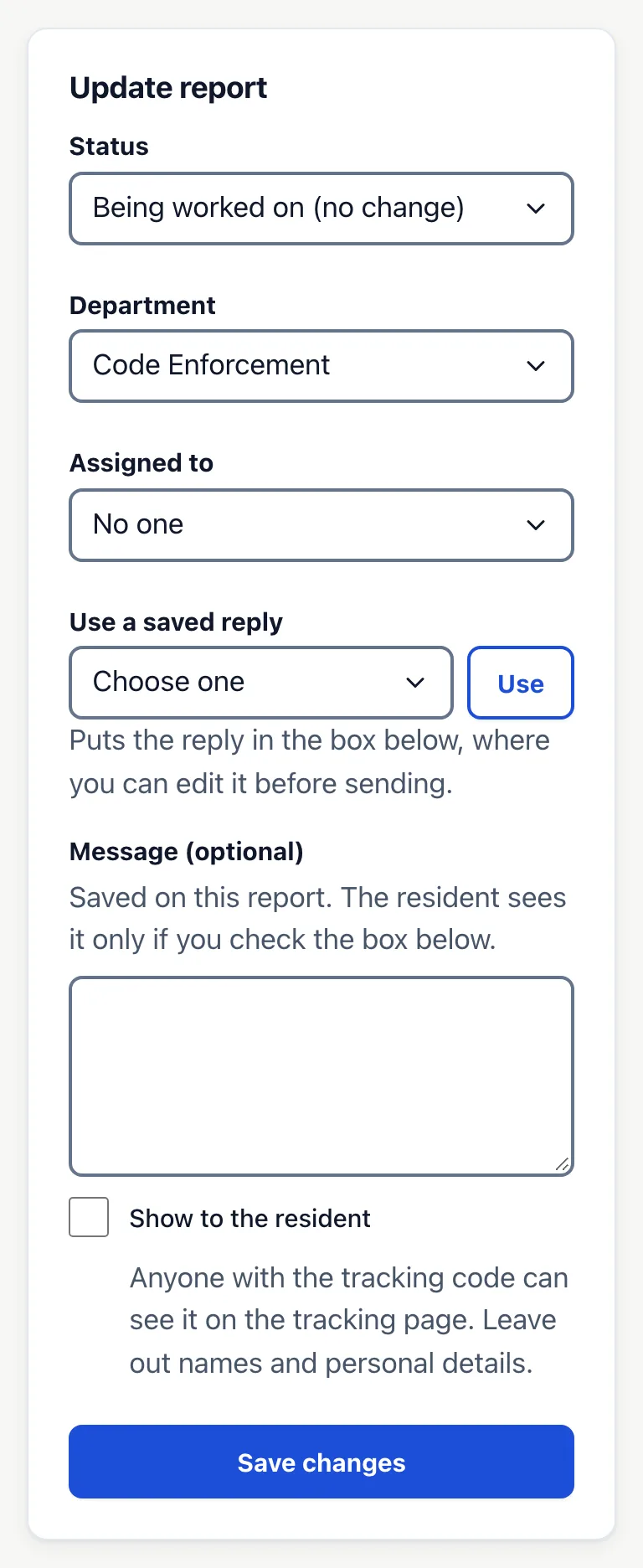
Change any of these, then press Save changes. Everything you change is saved at once, and each change gets its own line in the timeline.
- Status: the menu lists only the statuses this report can move to.
- Department: move the report to another department. If that department has an email address, it gets an email. If it has a default assignee, the report is assigned to that person too, unless you also change Assigned to.
- Assigned to: choose the person who will handle it. They get an email, unless you assigned it to yourself.
- Use a saved reply: pick one and press Use to put its text in the message box, where you can edit it. See Saved replies.
- Message (optional): if you also change the status, the message goes with the change. If not, it is saved as a note.
Notes and messages to the resident
A message is for city staff only, unless you check Show to the resident. Then anyone with the tracking code can read it on the tracking page, and a resident who asked for updates gets it by email. Leave out names and personal details. The timeline marks each message Staff only or Shown to resident.
A photo of the fix
When you change the status to Fixed, you can add an After photo of the finished work: a JPEG or PNG smaller than 10 MB. It stays with city staff unless you check Show this photo on the tracking page. Leave out faces, house numbers and license plates. If the report is reopened, the photo comes off the tracking page.
The timeline
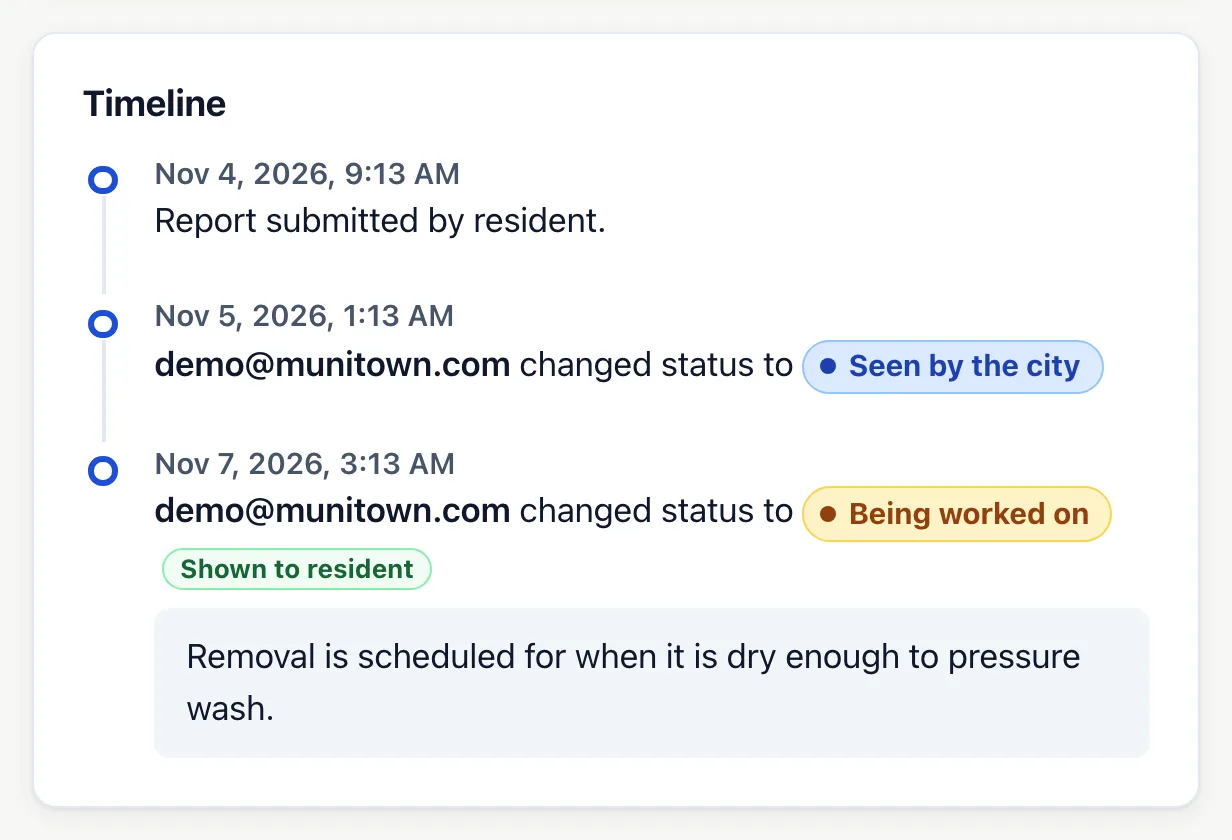
The timeline lists everything that happened to the report, with who did it and when. It can't be edited.
Duplicates nearby
When an open report has a map location, the page lists up to 10 other open reports of the same problem type within 50 meters. If one is the same problem, press Merge into this report on it.
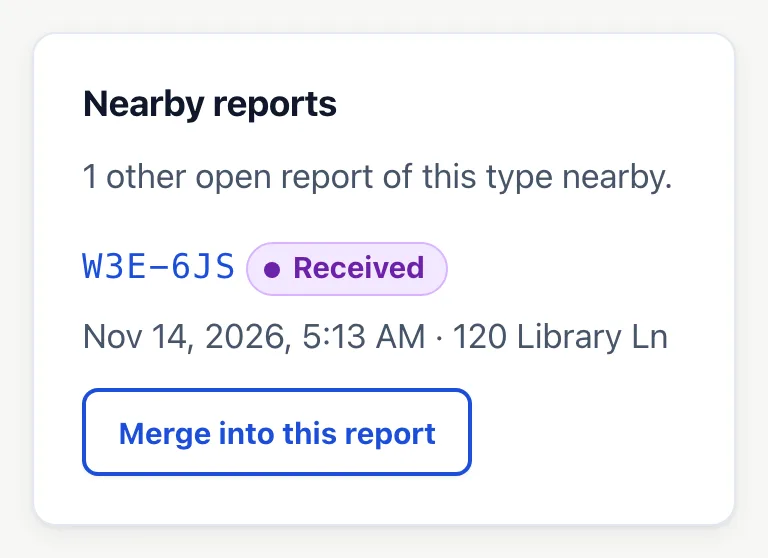
The other report is closed, and its tracking page gets a public note naming this report's code, like "Duplicate of report ABC-234. Follow that code for updates." Its resident is emailed if they asked for updates, and this report gets a note saying a second resident is waiting on it. To undo a merge, open the other report and change its status to Being worked on. The notes stay in both histories.
Delete a photo, or remove the reporter's details
- Delete photo removes the photo the resident sent, for example if it shows someone's face. Staff and Administrators can do this.
- Remove reporter's details deletes the resident's name, email, phone and photo, and stops emails to them. The rest of the report stays. Only Administrators can do this. To do it automatically, see Settings.
Neither can be undone.